Installing JupyterHub Extensions
This documentation will guide you through how to install, uninstall, and search for extensions within your JupyterHub environment.
This guide uses placeholders such as [extension-name]. Replace them with the appropriate values unless otherwise specified.
How to Search for Extensions in JupyterHub
On the left sidebar, open the extension menu by clicking the puzzle piece icon. Here is where you can search for new and existing extensions using the search bar above.
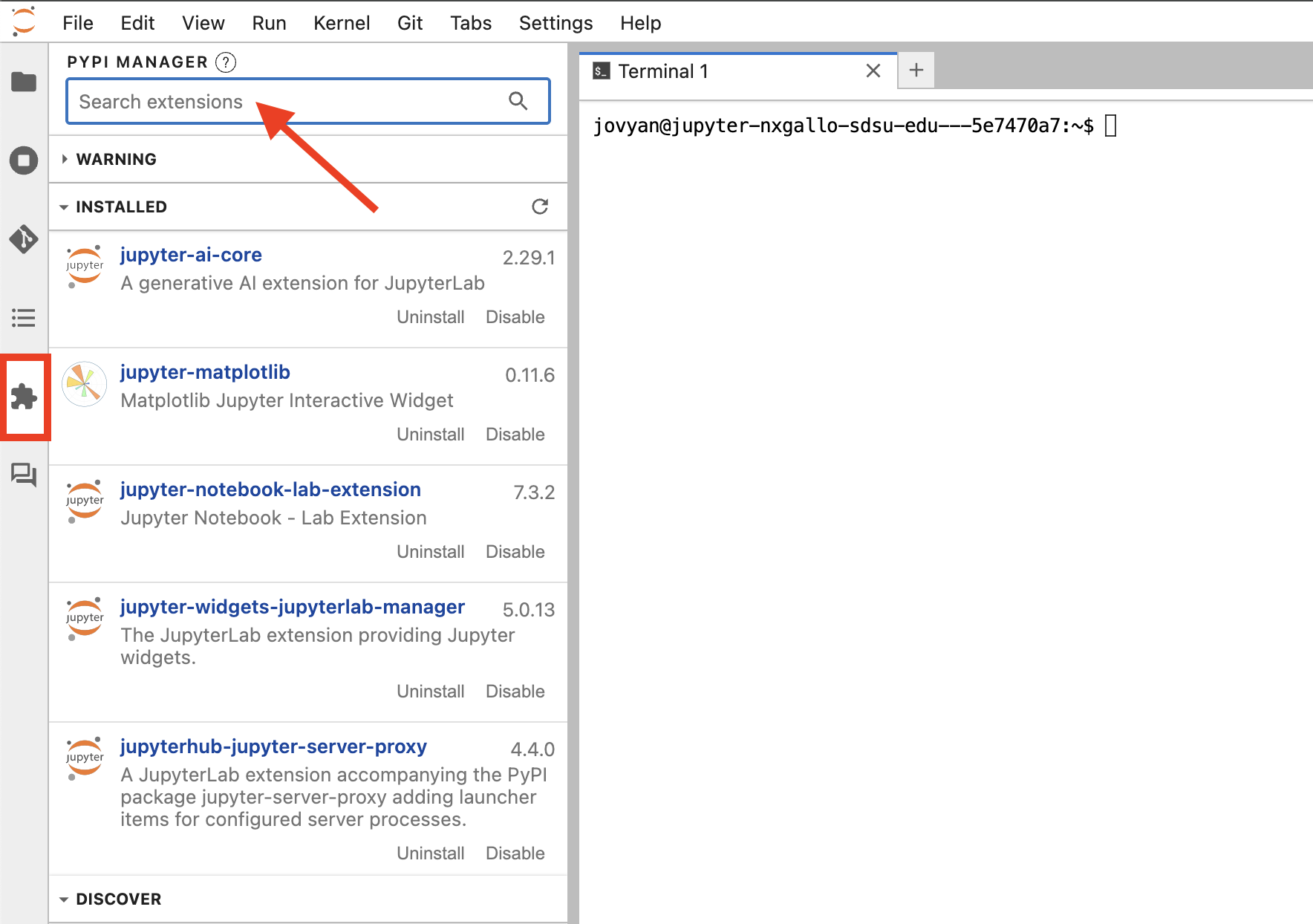
Additionally, under the dropdown menu titled “Installed,” you can see all the extensions present within your JupyterHub environment.
How to Install Extensions on JupyterHub
1) Open a Terminal from within your notebook environment.
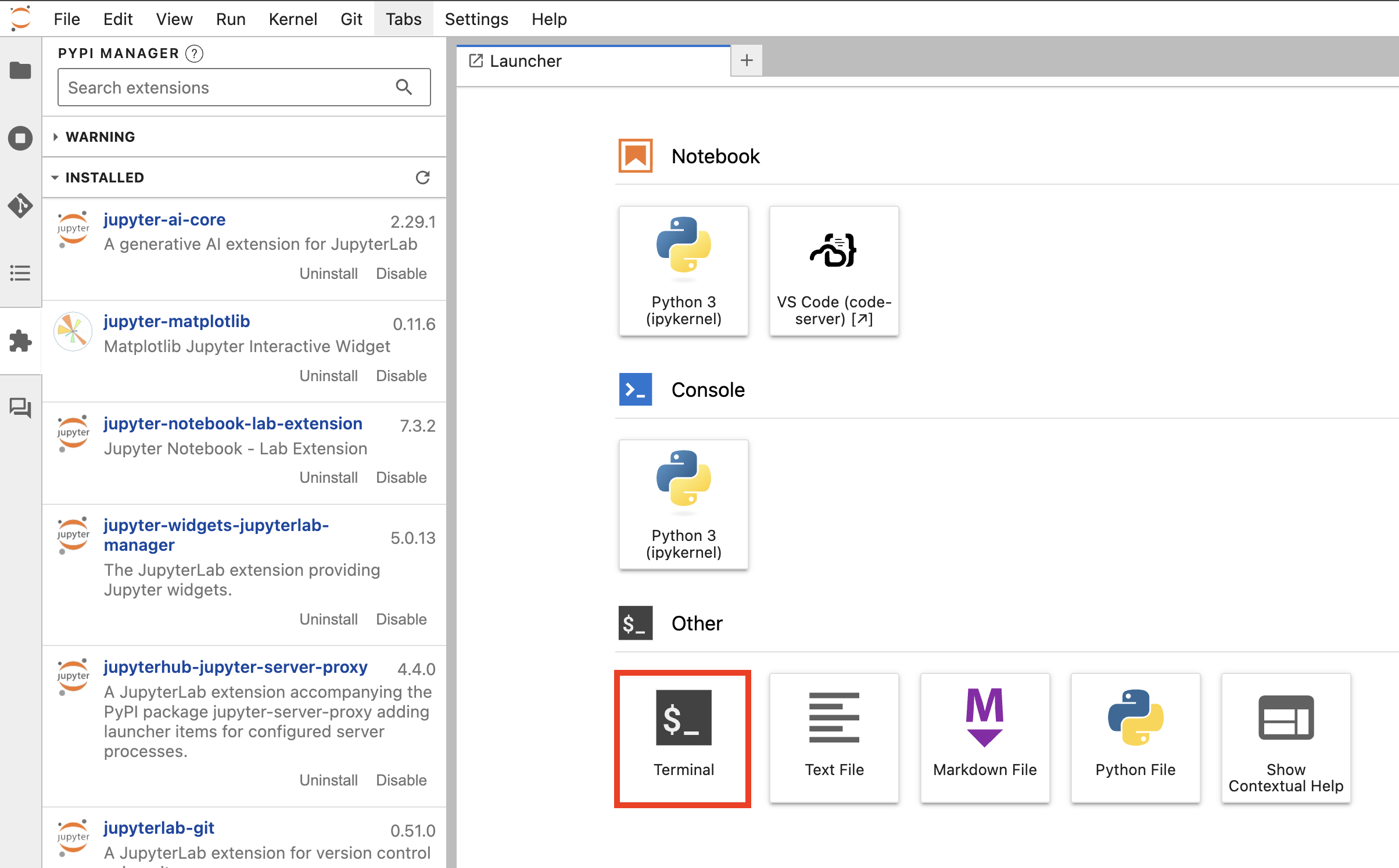
2) In your terminal, use the command below followed by the extension’s name:
pip install --user [extension-name]
This installs the extension into the /home/jovyan/ directory, where it can persist, as restarting your notebook will erase software not installed in that directory.
3) Check that the extension is installed:
After installing the extension, save your work and try one of the following:
- Restarting your notebook
- Refreshing your window
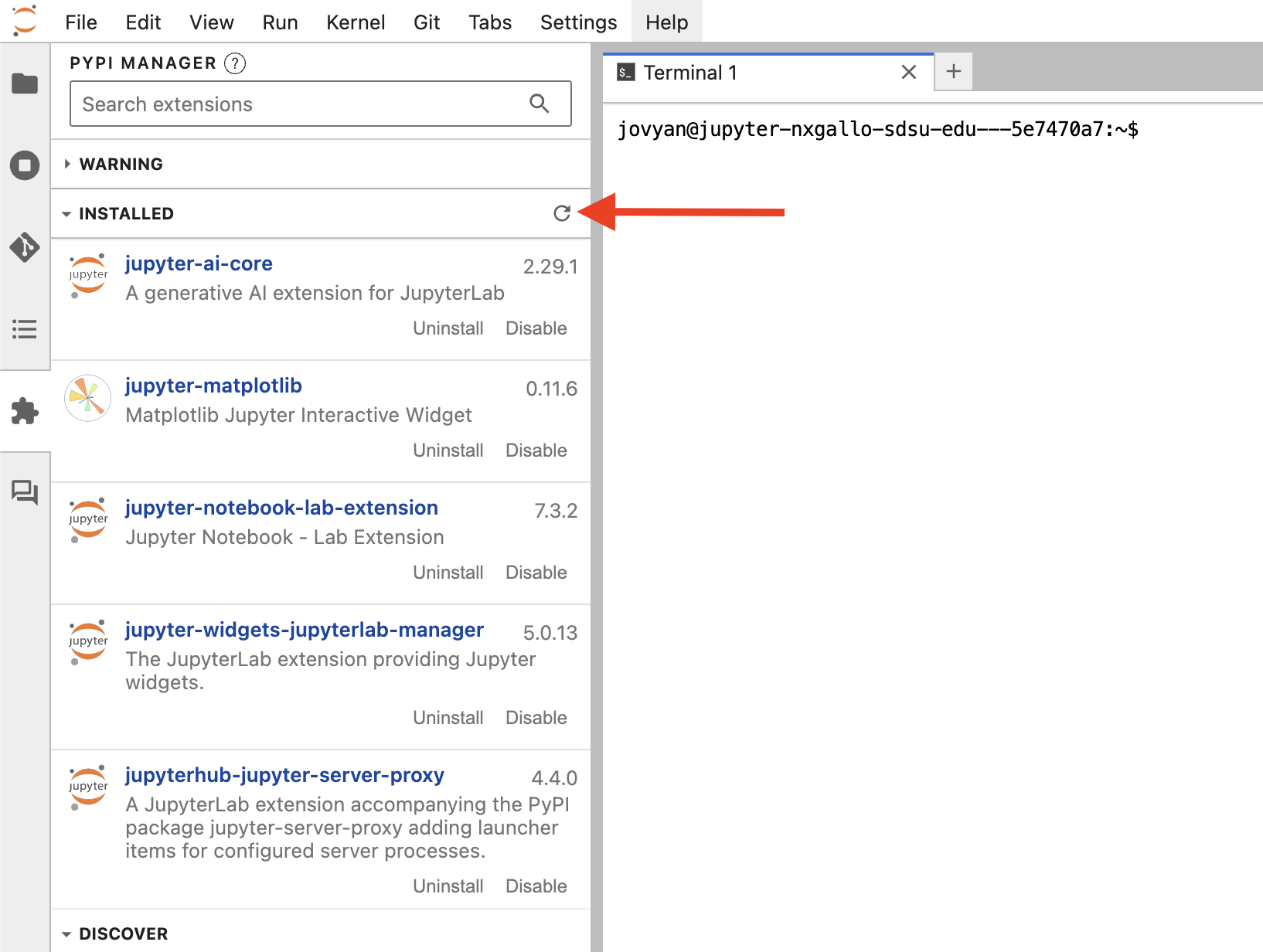
The extension should appear on the left side bar. You can also see it under your current extensions list by clicking the refresh icon.
Another way to check that the extension is installed properly is by running the following command:
find ~ -name "[extension-name]"
This command will search for the extension in your home directory /home/jovyan/, represented by the tilde (~). If you don’t receive any output, then the extension isn’t installed or isn’t installed in your home directory.
How to Remove an Extension
If you decide to uninstall an extension installed on your PVC, i.e., your home directory /home/jovyan/, you can use the following command:
pip uninstall [extension-name] -y
Check that the Extension is Uninstalled
- Restart your notebook server or refresh your window.
- To double check, run the find command below with the extension name within the double quotes:
find ~ -name "[extension-name]"
What to Do If Extensions/Packages Don’t Fully Uninstall
In some cases, a Python package or JupyterHub extension installed under a different Python version may not uninstall completely. If that happens, follow these steps to safely remove them from your home directory:
1) Locate all related files or directories
find ~ -name "[extension-name]*"
2) Review the output carefully
- Make sure that the listed items contain only the files and directories associated with the extension you want to remove.
3) Delete the package or extension files
find ~ -name "[extension/package-name]*" -exec rm -rf {} +
This command will remove all matching files or directories. Please confirm the results of the first command before running the delete command.